Showing posts with label Sony Playstation event. Show all posts

Monday, July 6, 2020

SONY PLAY STATION 3 UPDATE VIA USB ( SAFE MODE )

SONY PLAY STATION 3 UPDATE VIA USB ( SAFE MODE )


Updating the PlayStation 3 system software using the Safe Mode menu

Find out how to update your PlayStation 3 using a USB storage device and the Safe Mode menu.

  1. Download the latest system software update to your USB storage media
  • Create a folder on the USB storage media into which you wish to save the downloaded system software update:
  • Using a PC/Mac, create a folder named “PS3” on the storage media or USB device.
  • Within this new “PS3” folder, create another folder named "UPDATE".
  • The file you download will be called “PS3UPDAT.PUP”. Save it here now.


  • If the data is not saved in the correct way, the PlayStation 3 system will not recognise the update file. The folder names must be in all uppercase letters.


  1. Connect the USB storage media to the PlayStation 3 system

  2. Carry out the following actions to Activate Safe Mode on PlayStation 3:

  • Turn off the PlayStation 3 by holding the Power button on the front of the unit till the Power light is red.
  • Touch and hold the Power button (do not remove your finger from the button). You will hear a beep, meaning the PlayStation 3 is powering on.
  • Continue to hold the Power button and after about 5 seconds, you will hear a second beep, indicating the video reset.
  • Continue to hold the Power button and after about another 5 seconds you will hear a third beep and the system will power off (Power light is red).
  • Touch and hold the Power button (again, do not remove your finger from the button).  As in Step 2, you will hear the first beep, again for the PlayStation 3 as the power turns on.
  • Continue to hold the Power button and after about 5 seconds, you will hear a second beep for video reset.
  • Continue to hold the Power button and after about another 5 seconds you will hear a quick double beep.  At that point release the Power button. If you succeeded in activating Safe Mode, you will see a message on the screen saying, "Connect the controller using a USB cable and then press the PS button.“
  • Connect the controller to the PlayStation 3 using a USB cable and press the PS button to enter Safe Mode.

  1. Select [6. System Update]     and Press Enter    
 
 
  1. As instructed, press START + SELECT at the same time to start the update

  1. The System starts preparation for updating:

  • This may take 5 -10 minutes.
  • After the preparation is done, the System will restart automatically.


  1. Follow the instructions on screen to activate & confirm the system software installation:

  • The PlayStation 3 system will not recognize the file if it is named incorrectly. (In such case, please review point 1)
  • Accept and confirm the following next steps on screen to start the system software installation

  1. The PlayStation 3 system restarts automatically after the installation is completed.

You may receive a system message which requires you to use a different option from the Safe Mode Menu

Please follow the instructions displayed.

  • Rebuild the database on the system storage : Deletes messages, playlists etc. This operation may take a long time depending on the type and number of data items.
  • Restoring the file system on the system storage : Attempts to repair all areas on the hard disk drive where files can be saved. Corrupt data may be erased if it cannot be recovered.
  • Formatting the system partition of the system storage : Attempts to delete all data on the system storage.

The message “No applicable update data was found” may be displayed if the USB storage media is not recognized.

Please make sure that the folders and the downloaded file are placed and named correctly.

  • Location: Save in the "PS3" folder > "UPDATE" folder.
  • File name: Save as file name "PS3UPDAT.PUP"

Confirm that the storage media is connected to PlayStation 3 system, and retry the update process as instructed above.

Check that the USB device is formatted to the File Format FAT 32 or FAT 16. The PlayStation 3 will not recognize NFST File Format.

Sunday, June 28, 2020

Sony PlayStation 5 Price, Release Date, Design, Games, Controller

Sony PlayStation 5  Price, Release Date, Design, Games, Controller
PS5 release date, design, specs and news for Sony's PlayStation 5 ...

After months of hints and small reveals, Sony’s PS5 is finally out in the public eye. The company revealed its next-gen console in a games-focused livestream the other week, highlighting some of the exclusive and mutliplatform games coming to the new machine. We also got to see the box for the first time, something Microsoft did with its Xbox Series X back in January. Between that and earlier reveals, we have a fair amount of information about the thing right now, so let’s get into a roundup of everything we know so far, as well as predictions about what we don’t. So here’s the PS5: it’s design, specs, and games, as well as predictions about the price and release date.

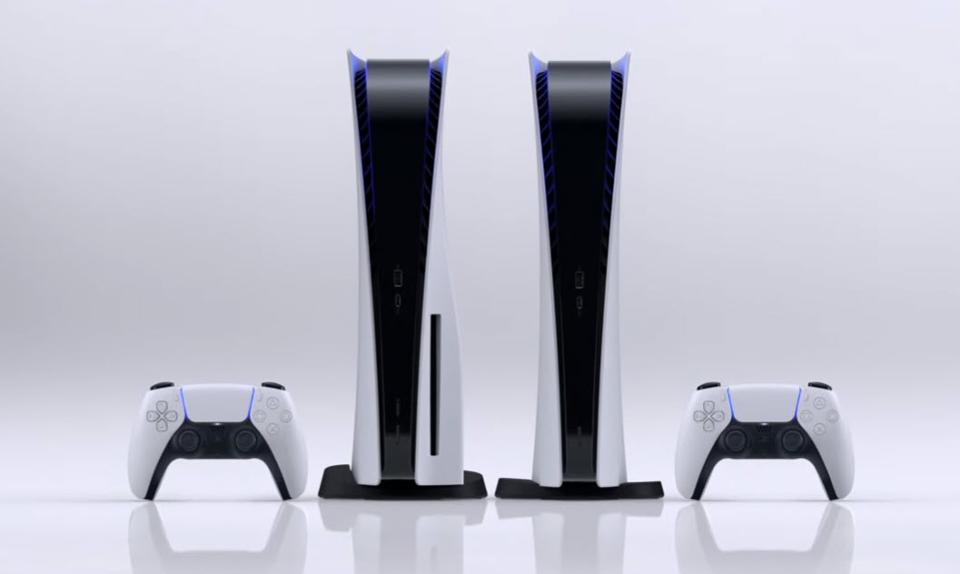
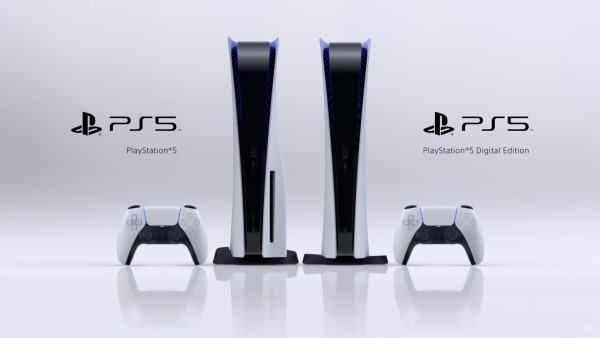
Design: It’s a weird one! Consoles have either been black boxes or made by Nintendo for as long as I can remember, but the PS4 is going for a sort of mod spaceship look, with big white plastic fins on the side. There are two versions: one with a disc drive bumping out, and one without. Both are gigantic, and likely the biggest console you’ve ever owned.

Take a look here:

Release Date: A question mark, though not quite such a big question mark as price. Consoles typically come out in November as prep for the holiday season: the PS4 came out on November 15, and the PS3 came out on November 17 (in North America). Before that, things were not quite as standardized, but nobody really expects things to change all that much. Look for something in late November, maybe 19 or 20.

Specs: Sony revealed the specs for the console before it showed the machine itself, so we know what’s inside the box:

  • CPU: AMD Zen 2-based CPU with 8 cores at 3.5GHz (variable frequency)
  • GPU: 10.28 TFLOPs, 36 CUs at 2.23GHz (variable frequency)
  • GPU architecture: Custom RDNA 2
  • Memory interface: 16GB GDDR6 / 256-bit
  • Memory bandwidth: 448GB/s
  • Internal storage: Custom 825GB SSD
  • IO throughput: 5.5GB/s (raw), typical 8-9GB/s (compressed)
  • Expandable storage: NVMe SSD slot
  • External storage: USB HDD support (PS4 games only)
  • Optical drive: 4K UHD Blu-ray drive   

Games: This is a little confusing, because the PS5 will be backwards compatible, and there are a bunch of cross-gen games that will also receive upgrades for newer hardware. So not only will anything you have on the PS4 will run on the PS5, major AAA releases like Assassin’s Creed: Valhalla, Cyberpunk 2077 and whatever the new Call of Duty is will be made to take advantage of more horsepower.

Beyond that, Sony announced a bunch of exclusive and non-exclusive titles in its recent showcase. Here’s a list of those. We’re not getting a major first-party AAA release title, but we are getting Spider-Man: Miles Morales a smaller standalone title releasing for the holiday season. The first full-scale exclusive will be Horizon: Forbidden West, out in 2021, though we don’t know when.

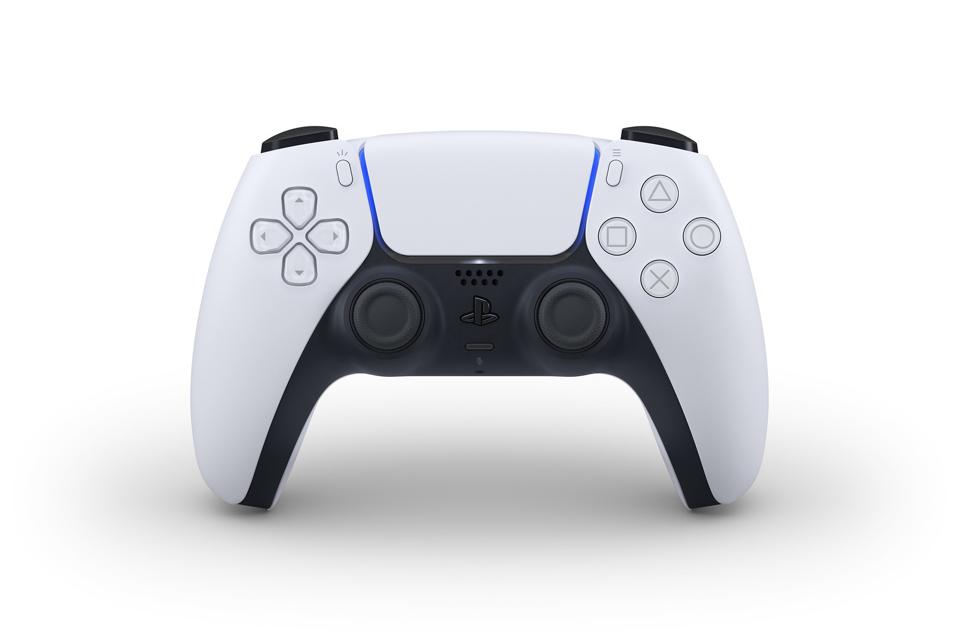
Dualsense

Controller: We actually saw the Dualsense controller long before the console itself, and the white/black two-tone design certainly makes more sense it context. That’s what we can see, however. What’s more exciting is what we can’t see yet: the Dualsense is coming with state of the art haptics and feedback mechanisms. I don’t want to get too excited, because it’s impossible to evaluate this stuff without a controller in its hand, and rumble effects have been overhyped before. I have, however, read impressions from developers who are impressed with the experience overall, so I’m cautiously optimistic.

Price: This one is arguably the biggest question of the entire console. We do not yet have a confirmed price, but we do have an idea of where it might fall. What we know is that there will be not one but two prices: one for the all-digital edition, and one for the disc drive edition. If the all digital edition is cheaper, most suspect a price differential of $50-$100. $100 would be a lot more than the cost of the disc drive, but there is always the possibility that Sony would be hoping to make it up through committing players to buying on PSN.

Few expect the price to go as high as $599, the eye-watering price that crippled the PS3 at launch, but it’s not totally impossible. If that’s the upper bound, the lower bound is probably $399, which is where the PS4 launched.

Most expect one of these two machines to be $499, so the breakdown could go $549/$499, or $499/$449. If we’re looking at a $50 price differential, my guess is it would be one of those two.

If we’re looking at a 365AED  price differential, it’s not impossible that we would start edging up at one of those two bounds: either $599/$499 or $499/$399.

Monday, June 22, 2020

Sony Playstation 4Stopped Working! 5 Common Playstation 4 Issues & How To Fix Them

Sony PlayStation  PS4 Stopped Working! 5 Common PS4 Issues & How To Fix Them

Let’s face it, a slow or broken PlayStation 4 can be such a buzzkill.

What is leisure time without Fortnite, FIFA 19, and God of War?

With the release of two new iterations of its original console in 2016, Sony resolved some of the hardware issues that had plagued the PS4. The company also made efforts to improve users’ gaming experience through various firmware updates.

But still, the gaming console isn’t immune to occasional hiccups. Most PS4 users will agree that their PS4 stopped working at some point.

Of all the common PS4 problems, PlayStation Network (PSN) issues are most frequent. And while software updates have come with a multitude of new features and options, they’ve also created new issues that weren’t prevalent before the fix.

Here are some of the most common PS4 problems and how to fix them.

1. Blinking Blue Light


When booting your PS4, the LED light on the side of your console should momentarily pulse blue before changing to white.

But if your console has a problem, the blue light will pulse continuously without turning white. This is usually followed by your PS4 inexplicably turning off. This indicates a faulty video output, where the console fails to send a signal to your TV.

Following several complaints, Sony issued a PlayStation troubleshooting guide for this complication and offered an option to get your console replaced if none of the fixes worked.

But before you go through the hassle of getting a replacement, try the following hacks:

Check Your Console’s Hard Drive 


Turn off your console and detach all the cables. Next, slide out the hard drive’s bay cover and check whether the hard drive is firmly secured in place.

Check Your HDMI Cable to Ensure its Working


Try changing your HDMI to see if helps. Also, check the HDMI ports on both your TV and PS4.

Run a Firmware Update on Your TV

This will fix any hardware compatibility issues and reset your TV’s HDMI settings, which sometimes affect your console’s signal.

Check the Power Supply Connections for Any Faults


Check your AC power plugs, sockets, as well as the main power supply to ensure everything is okay.

Perform a Controller Reset


Connect everything properly. Next, pick up your controller and press the PS4 button until the LED system light changes to orange.

Then, hold down the same button again until you see a white system light. Try rebooting your PS4 and see if the problem is fixed.

2. PS4 Fails to Connect and/or Keeps Disconnecting from the PSN


One of the most persistent problems with PS4 is the failure to connect to the PSN. Network connectivity issues often manifest in the form of CE-33991-5, NW-31201-7, and WV-33899-2 error codes.

The PSN usually goes down due to ongoing service maintenance. In this case, you’ll receive the CE-33991-5 error code. The good news is, service maintenance doesn’t take long, so you can just wait it out.

But if the problem isn’t due to maintenance and you’re still experiencing connectivity issues, you can try the following hacks to get back online:

Run an Update on Your Router’s Firmware


Outdated router firmware often causes connection issues. You’ll find information on how to check for router firmware updates on the back of your modem/router.

Reconnect to Your Home Network


Sometimes, you may need to “re-teach” your PS4 on how to connect to your network. To do this, you’ll need to “forget” your home network on your console’s connectivity settings, and then try to reconnect.

Change Your DNS Settings


If other devices can connect to your home network but your console can’t, try changing the DNS settings.

To do this, go to “Network Settings” and select “Custom” for Wired or Wi-Fi, depending on the type of connection you’re using. Next, select the auto-IP address setting, and choose “Do Not Use” as the DHCP Host Name.

You’ll see a prompt with two DNS settings – select “Manual”. Next, set 8.8.8.8 as your primary DNS, and 8.8.4.4 as your secondary DNS.

Ideally, your console will cycle through its tests and re-connect. If it doesn’t your DNS settings aren’t the issue.

Unplug Everything and Re-Plug


Switch off your PS4 and disconnect the power cables. Do the same for your router and modem and wait for about twenty minutes.

Plug in your router and modem to the power source and boot them. Once they’re back online, re-plug your console and turn it on. This should reset both your home network and console, as well as restore your connection.

In case the above steps fail, check if the problem is on the manufacturer’s end by visiting the PlayStation Network service status webpage. On the website, you’ll see all the offered features and their current status.

If a certain feature is indicated green, it means its working. If not, there’s an issue with it.

While you’re there, be sure to check out the scheduled service maintenance reminder so you can know when the PSN will be down.

3. PS4 Crashes or Freezes Often


If you’re experiencing this problem, it doesn’t mean that you have a broken PlayStation 4. The problem is probably faulty firmware, a network issue, or overheating.

You can solve this problem by giving your PS4 a rest so it can cool down.

Also, avoid hard resetting your console because this can make it crash. If letting it cool down doesn’t work, check the manufacturer’s support webpage for a bug-fix patch.

4. Blinking Red Indicator Light


This problem manifests in a similar manner to that of a blinking blue indicator light, but the causes vary. In this case, the problem is most probably from overheating caused by a malfunctioning fan.

Here’s how to fix PS4 consoles with this problem:

  • Switch off your PS4 for about an hour to allow the console to cool down.
  • Keep the PS4 in a well-ventilated space, away from other heat-emitting electronics.

If none of these suggestions work, schedule a  console repair  to fix your fan.

5. PS4 Auto Ejects Game Discs or Doesn’t Eject at all


The most probable cause for this issue is a malfunctioning optical drive.

To fix it, you can use a stand to place the console vertically. This will prevent your console from automatically ejecting game discs.

Alternatively, you can manually eject the game disc if your PS4 fails to eject it. Be sure to refer to the manufacturer’s support site for guidance on this.

My PS4 Stopped Working and None of these DIY Hacks Work, Now What?


If your PS4 stopped working and none of these hacks could fix it, it might be time to let an expert look at it.